
บุ๊กมาร์ก
| ผู้พัฒนา: | Pixla LLC (4) | ||
| ราคา: | * ฟรี ใหม่ | ||
| คะแนน: | 1,720 ทอง | ||
| การจัดอันดับ: | 0 | ||
| ความคิดเห็น: | 0 โพสต์ความคิดเห็น | ||
| รายการ: | 0 0 | ||
| แต้ม: | 0 | ||
| +1 แต้ม | |||
สรุป
Rigkin เป็นแอปในหมวด “เครื่องมือสำหรับนักพัฒนา” จาก Pixla LLC
มาใหม่ ออกเมื่อ คุณได้เป็นหนึ่งในคนกลุ่มแรก
เข้าฟรี แต่ร้านค้าข้างในเปิดอยู่นะ
ใช้ได้บน macOS 26.0 ขึ้นไป ลองเช็กดูว่าเครื่องคุณเป็นเวอร์ชันไหน
คะแนน AppAgg คือ 1,720 อยู่ระดับ “ทอง”
แค่ 3 เมกะไบต์ ต่อให้ไดรฟ์เต็มก็ยังลงได้
จัดเรต “4+” เหมาะกับเด็ก ๆ ด้วย
รองรับแค่ภาษาเดียว และไม่ใช่ภาษาไทย
ตอนนี้ที่นี่ยังเงียบกริบ ไม่มีคะแนน ไม่มีความคิดเห็น มาทำลายความเงียบกันเถอะ
ผู้พัฒนารายนี้มีแอปอื่นบน AppAgg อีก 3 แอป ลองไปดูกัน
อยากรู้เรื่องอัปเดตและแอปใหม่ก่อนใครไหม? ติดตาม ผู้พัฒนา หรือกดติดตาม ฟีด RSS ได้เลย การแจ้งเตือนแบบพุชส่งผ่านแอป AppAgg Alerts สำหรับ Android และ iOS
แพลตฟอร์มอื่น 0
 | RigkinMac App Store1K ทองmacOSการซื้อภายในแอป $19.99 | ฟรี |
ตอนนี้มีเฉพาะในร้านนี้
ประวัติราคา 0
- ราคาปัจจุบัน: ฟรี
- ต่ำสุด: ฟรี
- สูงสุด: ฟรี
ฟีดของคุณเองบนหน้าแรก
ภาพหน้าจอ 7


วิดีโอ 3
คำอธิบาย
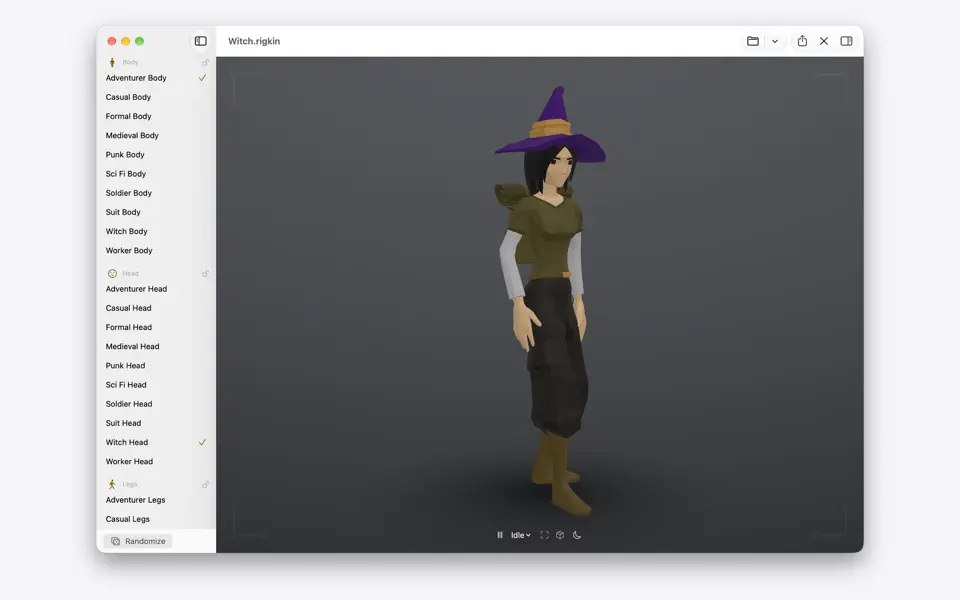
Import a pack of character parts from any vendor — a folder of USD, glTF or FBX, or a Unity package, read without Unity — into Rigkin's library, and build a character on its rig: choose a head, hair, body, clothing and more, and see it assembled. Randomize gives you a new character in one click; lock the parts you like and it rolls the rest. Wear a pack's ready-made characters, recolor parts, use a pack's color presets, and shape the body. Helmets and hats sit over any hair. Preview the pack's animations, and animations made for other humanoid rigs, retargeted onto the character.
Export the character for your game as USD, USDZ, glTF or FBX, with the animations you choose. A .rigkin project keeps your choices, with Save, Open Recent, autosave and versions, and a copy of the character, so it still opens on a Mac without your packs. Rigkin never changes the original packs.
RIGKIN PRO
A one-time purchase for making characters by the dozen:
• Make Variants — many characters from one project at once, each a different roll of the parts, keeping your colors and fitting.
• Generate from a Recipe — any saved project is a recipe; turn it into as many characters as you need, in any export format.
• Shortcuts — generate and export characters from the Shortcuts app or from Terminal.
Everything you make by hand is free.
Rigkin makes no network connections and collects no data.
จากนักพัฒนา
รายการ 0
-
 Rigkin
แต้ม 0
-

- +1 แต้ม

การจัดอันดับ 0
-
- คะแนนของคุณ
ผู้พัฒนา 4
มีอะไรใหม่
- เวอร์ชัน: 1.2.0
- อัปเดตล่าสุด:
- Added
- What's New after an update: the first time you open a newer version, a "What's New" button appears in the project window's toolbar. It goes away once you've read the notes. You can also open the notes any time from Help ▸ What's New in Rigkin….
- Export on Save: File ▸ Export on Save… picks a file, and every save of the project, autosave included, writes the character to that file again. Send to Worldra turns this on for the file it sends, so a Worldra scene that uses the character stays up to date as you edit. Stop Exporting on Save turns it off.
- Export progress: while a character is being written, a message above the viewport's controls says so. When it finishes, a short "Exported …" note appears, which you can close. If you quit during an export, Rigkin finishes writing first, and a Quit Now button lets you quit without waiting.
- Tool hints: a hint now floats just above the viewport's controls bar. It lists turn, move, zoom toward the pointer, double-click to frame and, when there is a clip, Space to play or pause. It shows when a character appears and again whenever the pointer is over the bar. Turn it off with View ▸ Show Tool Hints.
- Outfit pieces: parts named for a top, arms, legs or feet now fill their own slots, so you can wear outfit pieces together instead of one whole body at a time. In a pack with a base body, the other body files become tops. Randomize keeps male and female pieces on a body of the same figure.
- Capes on the back: capes and cloaks fill a Back slot, so only one is worn at a time.
- Scrolling hints: scrolling views flash their scroll bar when they appear, and fade at any edge that has more beyond it.
Changed
- Send to Worldra sends to the copy of Worldra that is already running, rather than starting a second copy.
- Export panel: the Format menu now lines up with the panel's other fields. The suggested file name is the saved project's name instead of the pack's.
- Make Variants: the folder picker now drops down over the Make Variants sheet instead of opening as a separate window.
- Default animation: when no clip is chosen, a standing idle plays. Before, a pack could open with the character playing a death or other non-idle clip.
- Library wording: the library sheet and empty window now use general wording that applies to packs from any source.
Fixed
- Rate Rigkin on the App Store is no longer always greyed out in copies downloaded from the App Store.
- glTF packs with separate files: a folder of .gltf files with separate .bin buffers or KTX2 textures now imports with all its parts. Before, the import came out empty.
- Heads and faces: parts named "skull" are recognized as heads. In a whole character split into pieces, its eyes, jaw, teeth, brows and lashes stay with the head instead of becoming separate accessories.
- Legs and feet in packs of whole characters: in a pack of whole characters cut into head, body, legs and feet, legs and feet can no longer be removed, so a new character never stands without them. Part names made only of slot words, such as "Suit Body", now read correctly.
- Added
- Rigkin library: packs are now imported into Rigkin's own library, either from a folder or straight from a .unitypackage file, and Unity doesn't need to be installed. Projects read their parts from the library, so they keep working when the original folder moves or a drive is unplugged. Use File ▸ Import Pack…, or open a .unitypackage from the Finder.
- Library sheet: Open Parts Pack…, Add Parts… and Add Animations… let you choose from the library. Folders are grouped by the import they came from, and you can search them. Each pack has a Remove… button that frees its space and keeps any files another pack also uses.
- Moving the library: Settings ▸ Library shows where the library is and how big it is. You can move it to a folder of your choice, move it back, or show it in the Finder.
- Projects show their character anywhere: a project now saves a copy of the character it wears. On a Mac that doesn't have the project's packs, it still shows the character and names the pack to import.
- Ready-made characters: File ▸ Wear Ready-Made Character… puts on a character that ships with a pack (.sk files), with its parts, body shape and colors. You can also drop a .sk file on the window or double-click it in the Finder. The Colors menus then say "Own Colors".
- Animation folders: File ▸ Add Animations Folder… adds clips from a folder and every folder inside it. The viewport has a clip menu, grouped by folder, for choosing which clip plays, and the project remembers that choice.
- Exporting several clips: mark clips in the clip menu with "Export … With the Character" and every export (USD, USDZ, glTF and FBX) includes them along with the playing clip. A game can then take its walk, run and attack clips from one file.
- Clips from other rigs: clips made for a different humanoid skeleton are now retargeted onto the character instead of being refused.
- Parts from other bodies: parts made for another body type on the same rig are now fitted onto the pack's body instead of being set aside.
- Mixing packs per project: the sidebar has a Folders section that lists every folder the project reads. Each folder has a remove button, and the section has Add Parts… and Add Animations… buttons.
- Face expressions included: a pack's face poses now load with it automatically.
- Recent projects in the empty window: a new, empty window lists your five most recent projects. Right-click one to Show in Finder or Remove from Recents. A project that no longer exists is removed when you click it.
- Keep playing in the background: a new option in Settings ▸ General.
Changed
- Zoom toward the pointer: scrolling and pinching now zoom toward the part of the character under the pointer.
- Lighter in the background: a playing clip pauses while another app is in front, which cuts its CPU use to almost nothing. It carries on smoothly when you come back.
- The untitled window steps aside: the empty project Rigkin opens at launch now closes when you open a project from a file, as long as nothing in it has changed.
- Color presets match your packs: the Colors menus now list only the presets made for the packs in the project, instead of every pack the vendor sells.
- Unreal and Godot downloads explained: when you import one, Rigkin now explains that it reads the Source Files or Unity download instead.
- Faster pack loading: a pack loads in about a third of the time. A pack read once opens again almost instantly, and a second window on the same pack shares the first one's.
- Performance and stability improvements: lower memory use, because a closed project now releases its memory. Also more reliable drawing after switching to and from full screen.
- Plus many more changes.
Fixed
- Duplicates are separate projects: a duplicated project now gets its own identity, so Edit in Rigkin and Make Variants treat it separately from the original.
- No more red parts: parts no longer turn pure red after Randomize on a ready-made character.
- Plus many more fixes. - 1.0.0
ข้อมูลเพิ่มเติม
- วันที่วางจำหน่าย:
- หมวดหมู่:
แอปสำหรับ macOS›เครื่องมือสำหรับนักพัฒนา - ระบบปฏิบัติการ:
macOSmacOS 26.0 และสูงกว่า - ขนาด:
3 Mb - ภาษาที่รองรับ:
อังกฤษ - การจัดประเภทเนื้อหา:
4+ - Mac App Store คะแนน: ¡
0 - เว็บไซต์:
 https://rigkin.com
คะแนน AppAgg
คะแนน AppAgg โดยประมาณของ
Rigkin
ผู้พัฒนา: Pixla LLC
คะแนนที่สูงขึ้นมักสะท้อนตัวชี้วัดที่ดีกว่าบน AppAgg
อิงจาก: ความนิยม · คะแนนจากผู้ใช้ · ความสดใหม่ · ดีล · ข้อมูลร้านค้า · กิจกรรมชุมชน
คำนวณใหม่ทุกวันจากข้อมูล AppAgg ล่าสุด
ความคิดเห็น 0 ¡
แชร์
Rigkin URL แบบสั้น: คัดลอกแล้ว!- Mac App Store

