
북마크
이 북마크의 제목을 입력하세요.
북마크가 저장되었습니다
요약
소개합니다. vince Wen에서 만든 ‘개발자 도구’ 카테고리 앱, Light Git.
새로 나온 앱이에요. 에 나왔으니 지금 써 보면 얼리어답터예요.
무료. 광고도 인앱 구매도 없어요. 앱에만 집중하면 돼요.
Microsoft Store는 Windows에 기본으로 들어 있어서 클릭 몇 번이면 설치돼요.
AppAgg 점수는 1,090. 실버 등급, 이 정도면 꽤 괜찮아요.
겨우 7메가바이트. 꽉 찬 드라이브에도 쏙 들어가요.
연령 등급은 ‘EVERYONE’, 아이들에게도 괜찮아요.
6개 언어를 지원하지만, 한국어는 아직 없어요.
사용해 보셨나요? 여기서 첫 리뷰의 주인공이 되어 주세요.
이 개발자의 앱이 AppAgg에 1개 더 있어요. 한번 둘러보세요.
업데이트와 새 앱 소식을 가장 먼저 받고 싶나요? 개발자를 팔로우하거나 RSS 피드를 구독하세요. 푸시 알림은 Android와 iOS용 AppAgg Alerts 앱으로 받을 수 있어요.
광고
다른 플랫폼 0
가격 기록 0
- 현재 가격: 무료
- 최소: 무료
- 최대: 무료
홈 화면의 나만의 피드
“신규 및 업데이트” 피드의 플랫폼을 선택하면 홈 화면에 필요한 앱과 게임만 표시됩니다.
스크린샷 10
설명

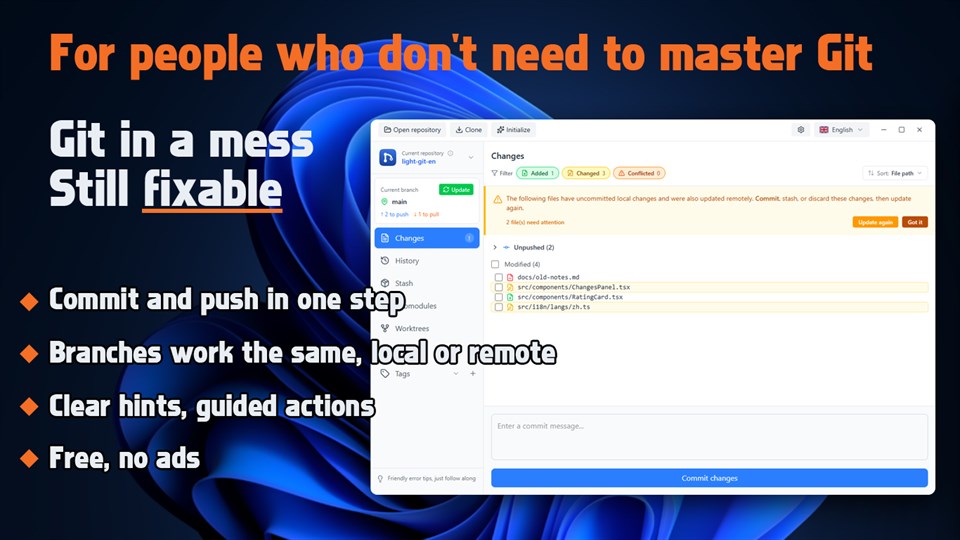
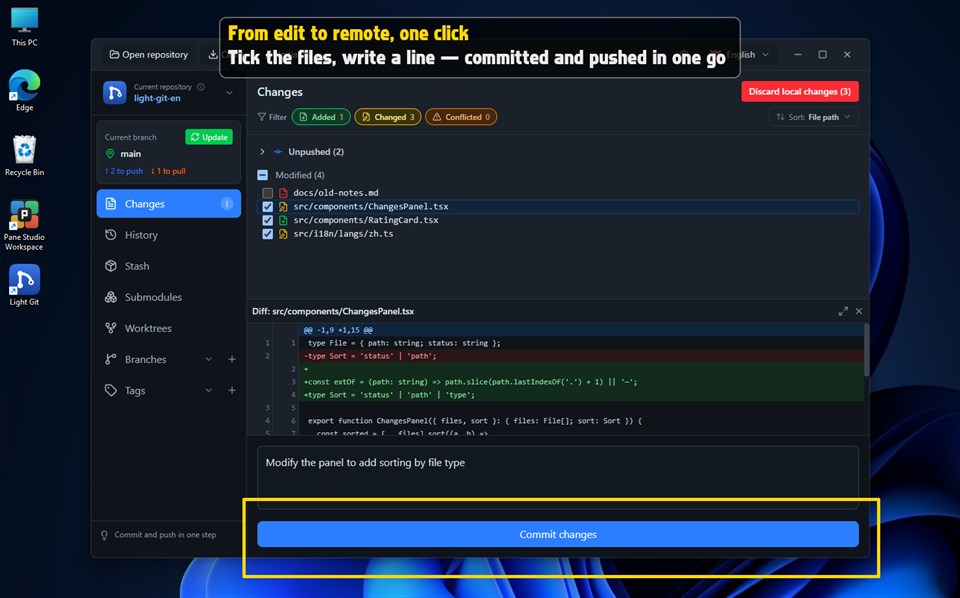
🚀 One commit, and the push goes out with it.
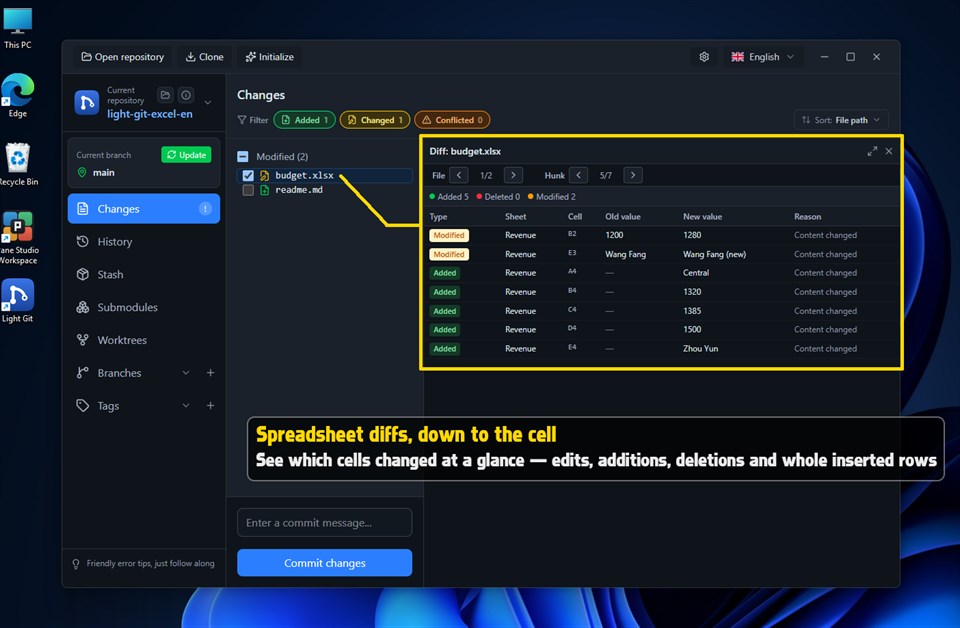
On the Changes page, tick the files to commit, write a short message, and click Commit once — the app commits and pushes to the remote automatically. Only the changes you ticked are included; there is no second button to forget. To see what changed, open any file for a line-by-line diff; images also get a before/after comparison. Spreadsheet files (.xlsx, .xls, .csv) are compared cell by cell, listing added, deleted and modified cells; inserting or deleting a whole row or column is attributed only to the cells that actually changed, so later content does not shift.
🧹 Changes shows only real edits.
Engines such as Unity and Cocos rewrite line endings when saving assets, so Git marks files as modified even though their content is unchanged. Such “modified with an empty diff” changes are detected and cleared automatically and no longer appear in Changes; real edits and staged content are untouched.
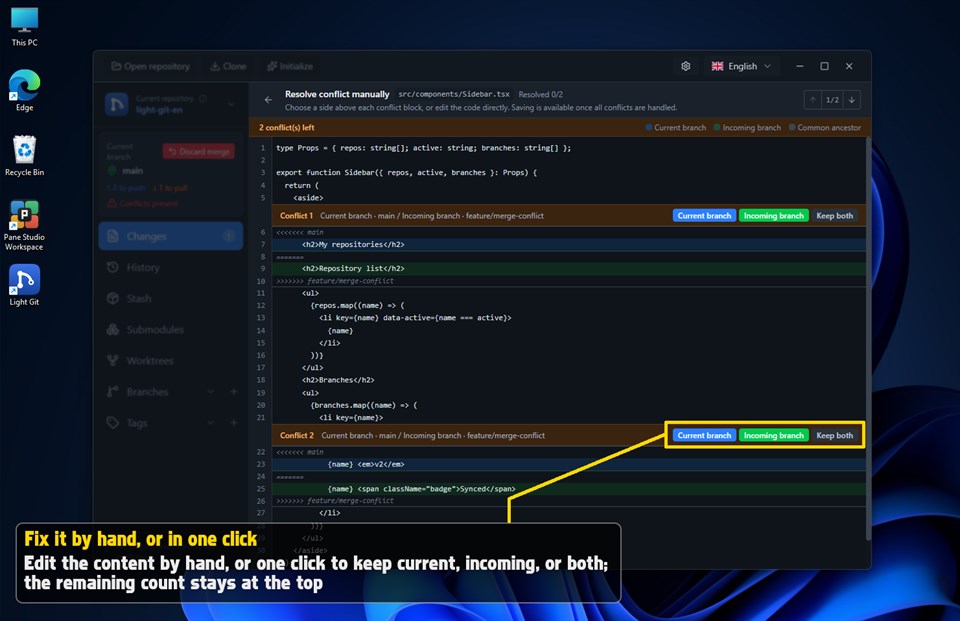
🛡️ Conflicts are handled hunk by hunk, so a colleague's work cannot be lost.
After a merge, the Staged list can fill up with files you never wrote — they came from colleagues. New users can easily lose a colleague's work with a reflexive click. Light Git's answer: during a merge the list is read-only — no checkboxes, no context menu, nowhere for Restore or Discard to act — so a colleague's changes cannot be wiped by accident.
✅ Fix the conflicts, then just commit.
There is no need to look for a Mark as resolved button. On commit, the app checks the actual content of each conflicted file: if no conflict markers remain, it counts as resolved and is included in the commit. A forgotten click can no longer cause a rejected commit. Spreadsheet conflicts (.xlsx, .xls, .csv) carry no conflict markers to tick; instead the conflict card offers a View diff button that lists differences cell by cell, with a switch between ours/theirs, base/ours and base/theirs so you can judge which side to keep, then resolve with the usual Use mine / Use theirs buttons.
💬 When something goes wrong, the app gives friendly guidance, not a wall of English errors:
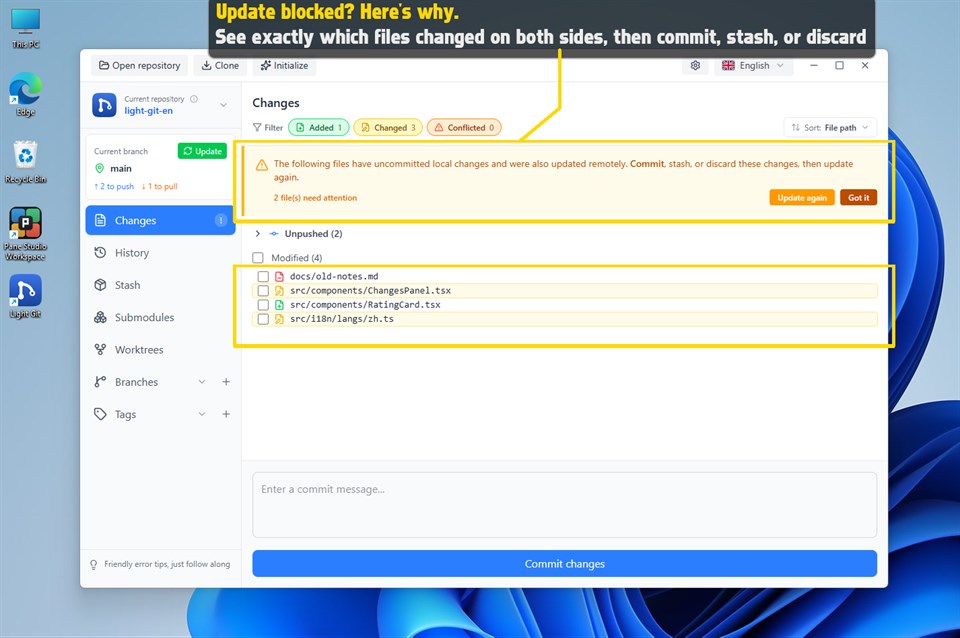
• When an update is rejected, an overlap pre-check first lists the files changed both locally and remotely, and offers three ways out: commit, stash, or discard.
• If the app is closed halfway through a merge, the next update offers two exits: Commit to finish the merge, or Abort merge.
• If the current branch has no upstream, the app explains why and offers Push and set upstream.
• When the remote requires authentication, an authorization dialog appears; once the details are correct they are saved and the operation is retried automatically.
• If local and remote have no common history, the app explains the situation and asks for confirmation before joining the two histories.
• If the remote rejects a push, the app distinguishes “the remote has new commits” from “no push permission”: the first guides you to update first and push again, the second suggests an account with permission. There is no force push, and colleagues' commits are never overwritten.
• Checking out (cloning) to a specific commit requires a target branch, so you never end up in a temporary state with no branch pointing at it.
🌿 Branches, tags and stashes live in the sidebar.
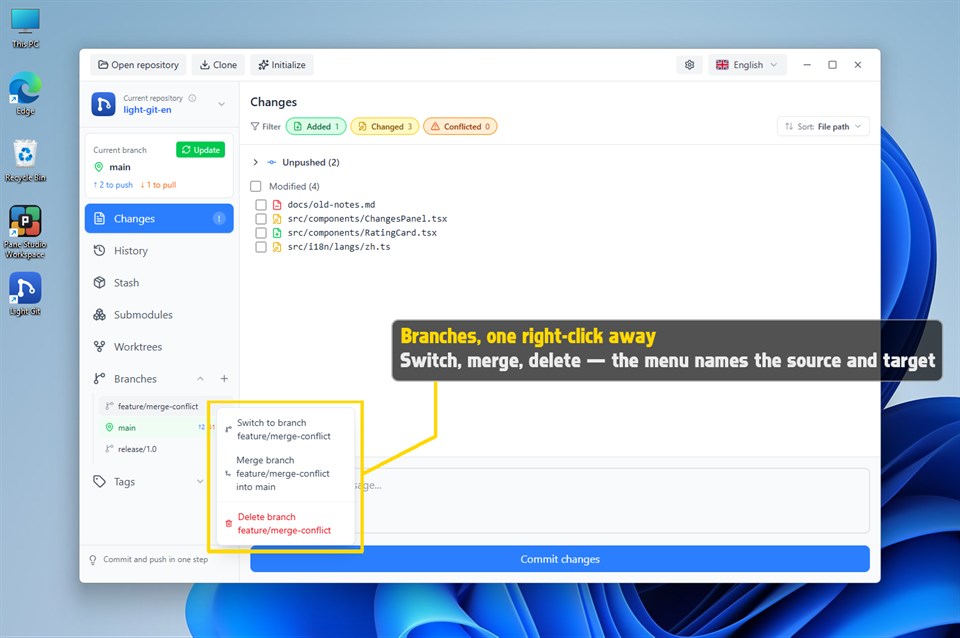
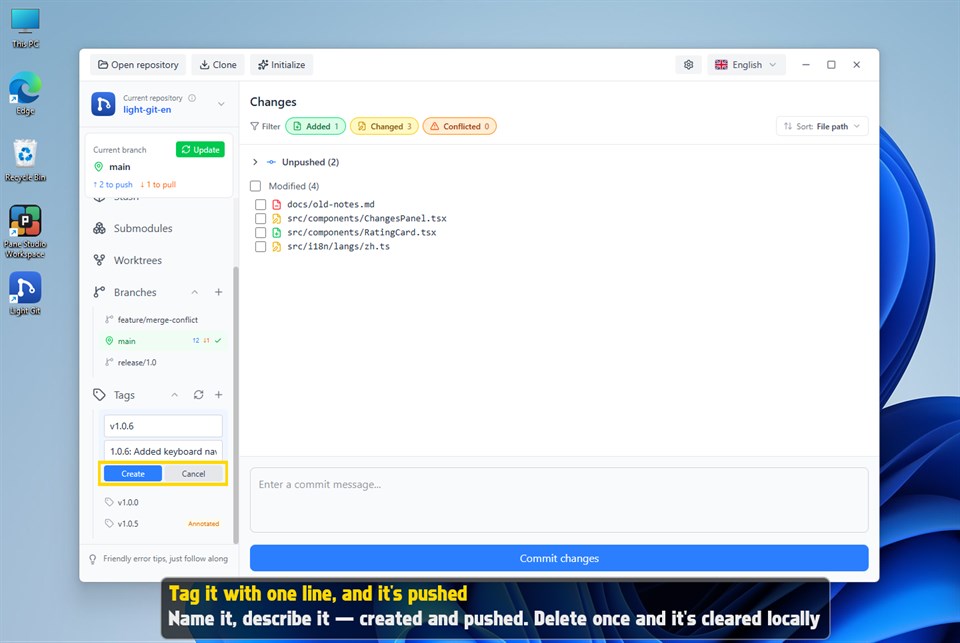
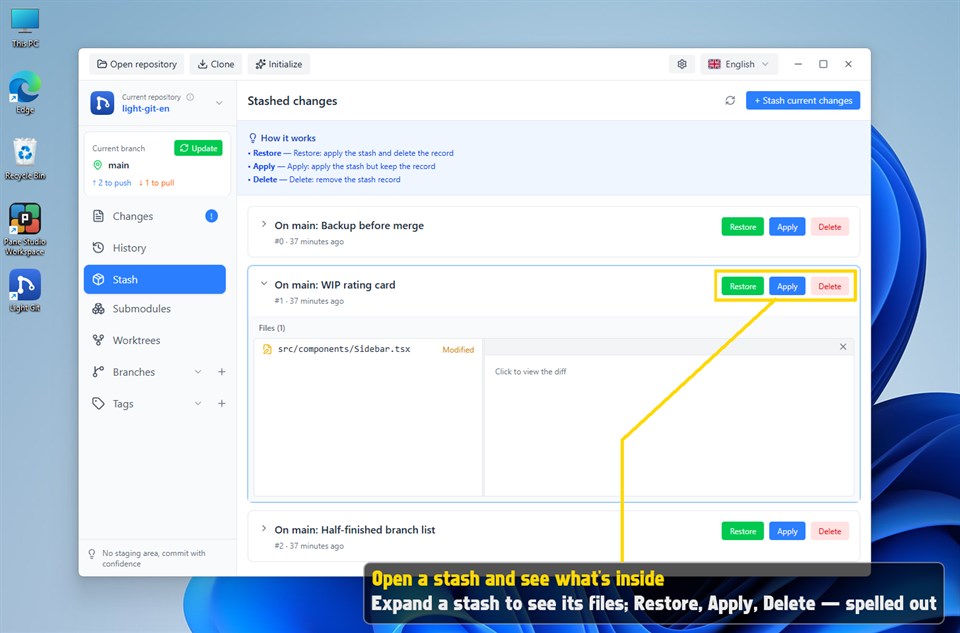
Local and remote branches share one list; switching, merging and deleting work the same way, and merging prefers the latest commit on the remote branch. Creating a branch or tag also pushes it to the remote; if the remote push fails, the local ref just created is rolled back, so you never keep a branch only you can see. Need to switch branches halfway through a change? Stash first, then Restore or Apply later; the stash list expands to show which files it touched.
🔗 One repository, several remotes.
Add, edit or delete remotes in Repository Properties and choose which one updates and pushes — handy when you maintain more than one remote; the last remaining one cannot be deleted, so you cannot lose the ability to sync.
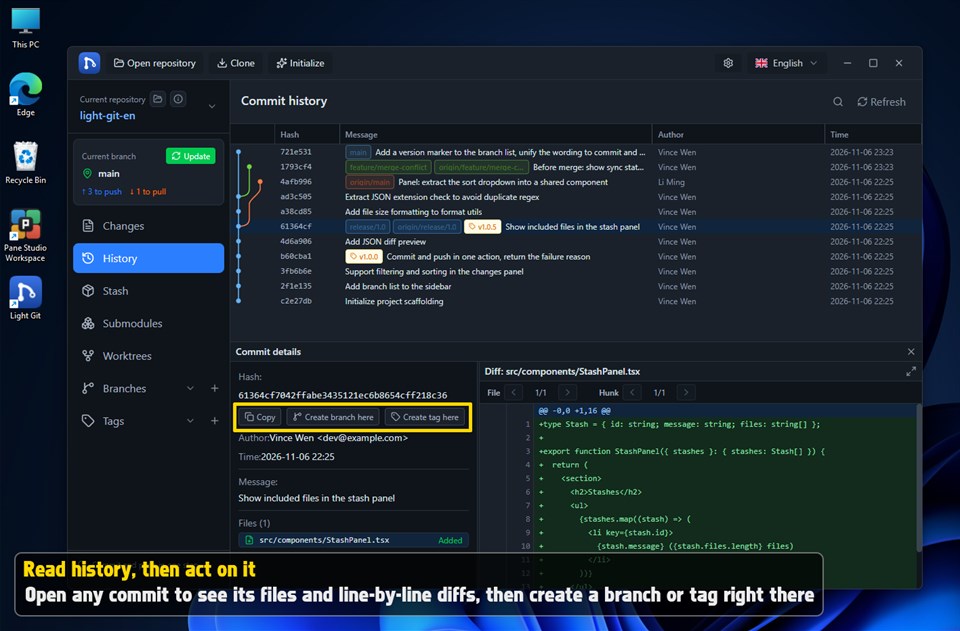
🕘 History you can read.
Commit history has branch lanes, so you can see at a glance which branch a commit belongs to and where it was merged in. Open any commit to see the file list and line-by-line diff, copy its hash, or create a branch or tag right at that commit; the diff view can expand to fill the content area, and you can step through files and individual hunks without going back to the list.
🔍 Find any commit by its message.
History supports searching by commit-message keywords. Matching rows and keywords are highlighted; Enter steps through the hits, looping at the end, and Shift+Enter goes back.
📦 Submodules you can see and manage.
The Submodules page lists the submodules registered in a repository, and you can initialize them there. Once initialized, a submodule can be opened and managed as a standalone repository, and you can also create, change the remote URL or delete them.
📁 One repository, several folders at once.
One repository can be checked out into several folders at once, each on a different branch. The Worktrees page lets you create, open or delete them; when the branch does not exist yet, creating a worktree makes a new branch from the current commit and pushes it to the remote.
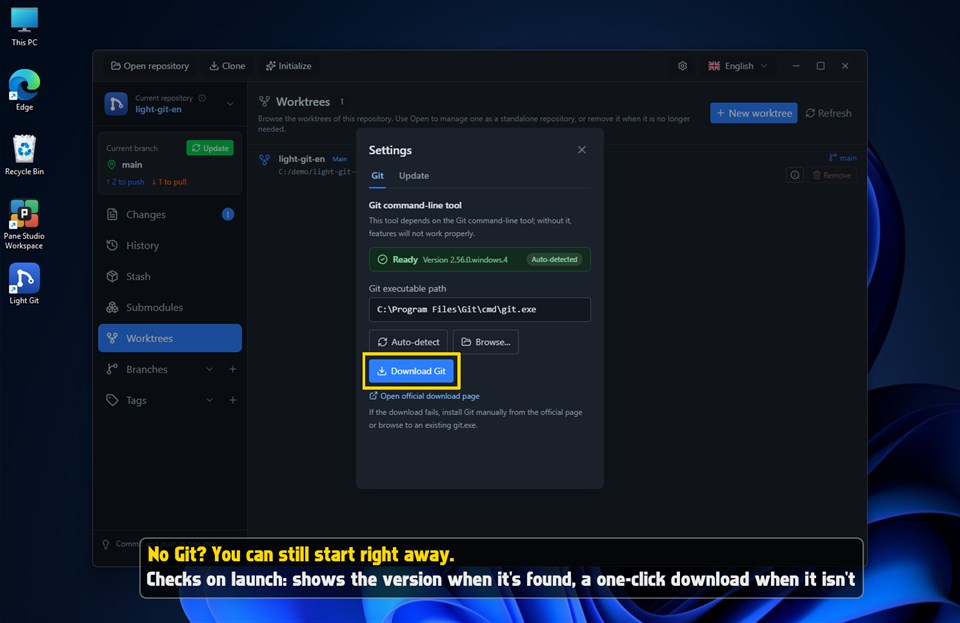
⚙️ Start even without Git.
Git is detected at startup. If it is missing, the app offers a one-click download and install, or you can point it at an existing git.exe on your computer. Local commits, history and stashes do not depend on it; only remote operations such as sync, clone and push do.
📌 A few more things.
• The UI supports Simplified Chinese, Traditional Chinese, English, Japanese, German, Spanish and French, and follows the system language; it also follows the Windows light and dark themes.
• Destructive actions such as discarding changes, deleting branches and aborting merges always ask for confirmation.
• Free, with no ads, no in-app purchases and no account; the installer is about 4.5 MB, and your code stays on your own computer.
👥 Who it is for does not depend on project size: not everyone on a project is fluent in Git.
• Not only programmers commit: designers, planners, operations and QA also deliver files to the same repository.
• People just learning Git, or who got burned once and no longer feel safe using it.
• Teams onboarding newcomers: “what to do before committing” becomes a few fixed buttons, with less explaining.
• Experienced users who do not want to memorize commands, yet expect every commit to be clean.
• Small projects that miss the SVN feel of “change it, commit it”.
System requirements: Windows 10 / 11 (64-bit). Remote operations such as sync, clone and push require the Git command-line tool on the computer (the app can download it in one click); local commits, history and stashes do not depend on it. This Store version receives updates through the Microsoft Store and has no in-app self-update.
개발자 소식
개발자이신가요?
페이지 맨 위에 소식을 올리면 팔로워에게 이메일로 전달됩니다. YouTube 동영상을 추가하면 “동영상” 블록 맨 앞에 표시됩니다.
목록 0
-
 Light Git
포인트 0
-

- +1 포인트

순위 0
-
- 내 평점
새로운 기능
- 버전: PC
- 마지막 업데이트:
- • Right-click files in the History and Stash lists to open them in File Explorer
• Files being compared are re-read when modified externally
• Commit history supports searching and locating by commit message
추가 정보
AppAgg 점수
1,090
AppAgg 예상 점수:
Light Git
개발자: vince Wen
1,090 실버
점수가 높을수록 대체로 AppAgg의 여러 지표에서 좋은 결과를 보인다는 뜻입니다.
기준: 인기 · 사용자 평점 · 최신성 · 할인 · 스토어 데이터 · 커뮤니티 활동
최신 AppAgg 데이터를 바탕으로 매일 다시 계산됩니다.
웹사이트용 배지:  복사됨!
댓글 0 ¡
가장 먼저 댓글을 남겨주세요
공유하기
Light Git 단축 URL: 복사됨!- Windows Store


