
Lesezeichen
| Entwickler: | Dhiva-Labs (9) | ||
| Preis: | Kostenlos Neu | ||
| Score: | 630 Silber | ||
| Ranglisten: | 0 | ||
| Kommentare: | 0 Kommentar posten | ||
| Listen: | 0 0 | ||
| Punkte: | 0 | ||
| +1 Punkt | |||
Kurzinfo
SecureShell Go ist eine App von Dhiva-Labs aus der Kategorie „Entwicklungstools“.
Neuerscheinung: erst erschienen, du bist also ganz vorne mit dabei.
Gratis, keine Werbung, keine In-App-Käufe. Nur du und die App.
Der Microsoft Store ist in Windows eingebaut, die Installation ist also in ein paar Klicks erledigt.
Der AppAgg-Score liegt bei 630. Silber, und das ist gar nicht übel.
Nur 23 Megabyte, passt sogar auf eine volle Festplatte.
Altersfreigabe „EVERYONE“, also auch für Kinder geeignet.
Spricht nur eine Sprache, und das ist nicht Deutsch.
Schon benutzt? Deine Rezension wäre hier die erste.
Der Entwickler hat noch 8 weitere Apps auf AppAgg. Ein Blick lohnt sich.
Willst du als Erstes von Updates und neuen Apps erfahren? Folge dem Entwickler oder abonniere den RSS-Feed. Push-Nachrichten kommen über die App AppAgg Alerts für Android und iOS.
Screenshots 4
Andere Plattformen 0
Preisentwicklung 0
- Aktueller Preis: Kostenlos
- Minimum: Kostenlos
- Maximum: Kostenlos
Dein eigener Feed auf der Startseite
Beschreibung

The same app is on Android, and an encrypted backup made on one can be imported on the other.
TERMINAL
• xterm-256color terminal with ten colour schemes and a bundled JetBrains Mono font
• Ctrl+Shift+C and Ctrl+Shift+V to copy and paste, Ctrl+= and Ctrl+− to zoom, and a right-click menu
• Ctrl+Shift+F searches the whole scrollback, with match case and regular expressions
• Ctrl+click a web address to open it in your browser. Only http and https addresses open
• Record a session log to a file you choose, as plain text or exactly as received
• A "Paste N lines?" check before a multi-line paste reaches the shell
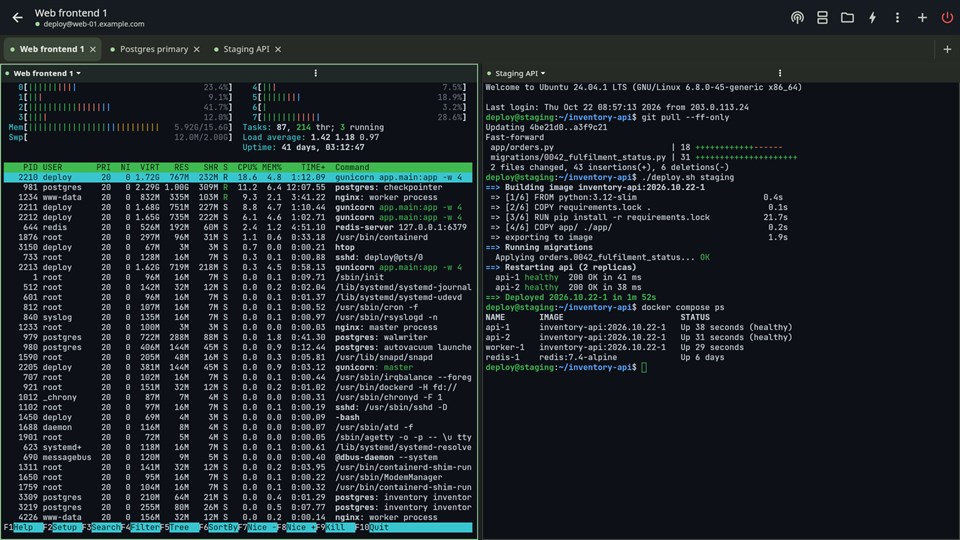
• Split the terminal area into up to four panes, each on a different server. Broadcast input types into every visible pane at once; it is off by default and turns itself off when the split closes
SESSIONS THAT STAY UP
• A dead connection is noticed and reconnected, including after the PC wakes from sleep or moves to another network
• When the shell exits but the connection is fine, Restart opens a new shell in the same tab without signing in again
• Keep a host's shell in tmux or GNU screen, so a reconnect, or reopening the app, lands back in the same shell
• Mosh: the app starts mosh-server over SSH and runs the terminal over UDP, so it carries on through network changes and sleep. No Mosh program is needed on Windows. The server needs mosh-server, a UTF-8 locale and its UDP ports open; otherwise the terminal opens over SSH and says why
SIGN-IN
• Password, private key (OpenSSH or PEM; RSA, ECDSA, ed25519; with passphrase), or keyboard-interactive for servers that ask for a one-time code
• Your SSH agent: the Windows OpenSSH agent, Pageant, or an agent pipe named by SSH_AUTH_SOCK. Pageant is used only when its pipe belongs to your account, the way PuTTY checks. The private key stays in the agent
• FIDO2 security keys such as a YubiKey (sk-ed25519, sk-ecdsa), through the agent
• OpenSSH user certificates, with the key ID, principals, validity and options shown, and a warning for a forced command or an expired certificate
• Generate an ed25519 key and install it on a server
• Jump hosts, each hop checked against its own host key
• Import servers from your .ssh\config file: HostName, User, Port, CertificateFile, ForwardAgent and ForwardX11
• A per-host switch for old routers and NAS boxes that only speak legacy algorithms
FORWARDING
• Agent forwarding, per host, so git and ssh on the server can use your agent's keys without copying them there
• X11 forwarding, per host: graphical programs on the server open their windows on your screen. You need an X server running on Windows, such as VcXsrv or X410. Windows X servers have no restricted mode, so while you are connected the server can see and control every window on that display, as with ssh -Y. Use it only with servers you trust; the host's X11 switch says so
• Local, remote and dynamic (SOCKS5) port forwards with live byte counters, listening on localhost unless you choose otherwise
REMOTE DESKTOP
• See and control a server's desktop over the SSH connection you already have: GNOME on Wayland, X11 desktops and Windows, and Macs through their built-in Screen Sharing
• A small agent runs on the server only while you are connected, listening on the server's loopback, so no port is opened and SSH stays the only way in
• On a server with no screen, start a virtual desktop, or one program on its own, and keep it running to come back to later. What the server is missing can be installed in a click
• Open one program from the server in a window of its own on this PC, through X11 forwarding (needs an X server such as VcXsrv or X410)
SECURITY
• Trust on first use, with the SHA256 fingerprint shown. A changed host key blocks the connection unless you acknowledge the change
• Saved passwords and keys are encrypted with Windows Data Protection for your Windows account, never stored in plain text. The trusted-key store is sealed against tampering
• Optional app lock with Windows Hello: your PIN, fingerprint or face. If the Hello prompt cannot be shown, the app stays locked
• Encrypted backups (Argon2id, AES-256-GCM) saved to any folder or cloud drive you pick; saved passwords and trusted host keys are included only if you tick them
• An optional diagnostics log for bug reports, off by default, kept on this PC with secrets removed
FILES
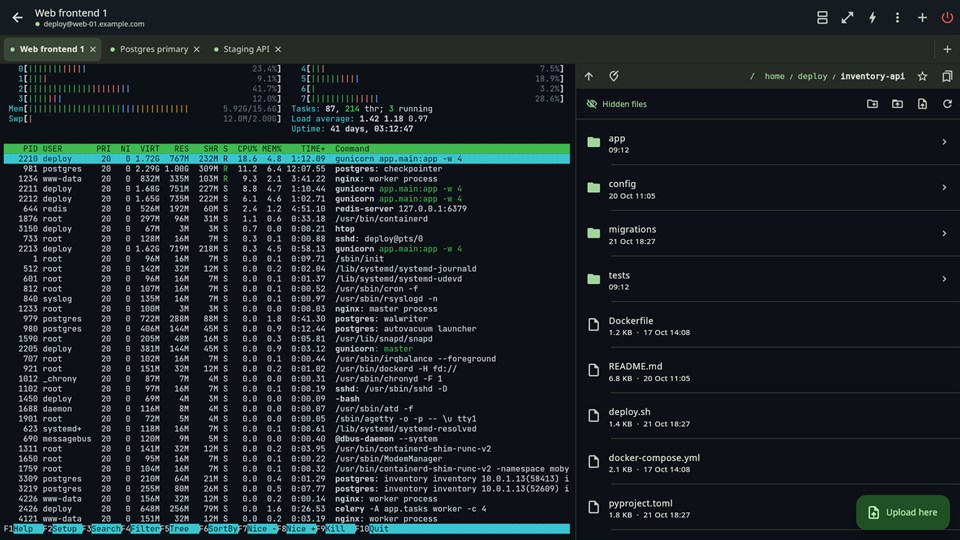
• SFTP browser on the same connection as the terminal
• Upload files and whole folders; download files and folders to your Downloads folder, and open a download with its usual app
• Rename, delete, new folder, permissions, change owner, duplicate
• Compress to .tar.gz or .zip and extract archives on the server; search the server by name or content. Actions the server's tools cannot do are not offered
• Drag a file onto another session's tab to copy it between servers, directly from one to the other or through this PC. Direct copies, compress and extract keep running on the server if the app closes
• Built-in editor with syntax colouring for 20 languages, find and replace, tabs for several files, and a save that checks nobody changed the file first and keeps its permissions
ACROSS YOUR SERVERS
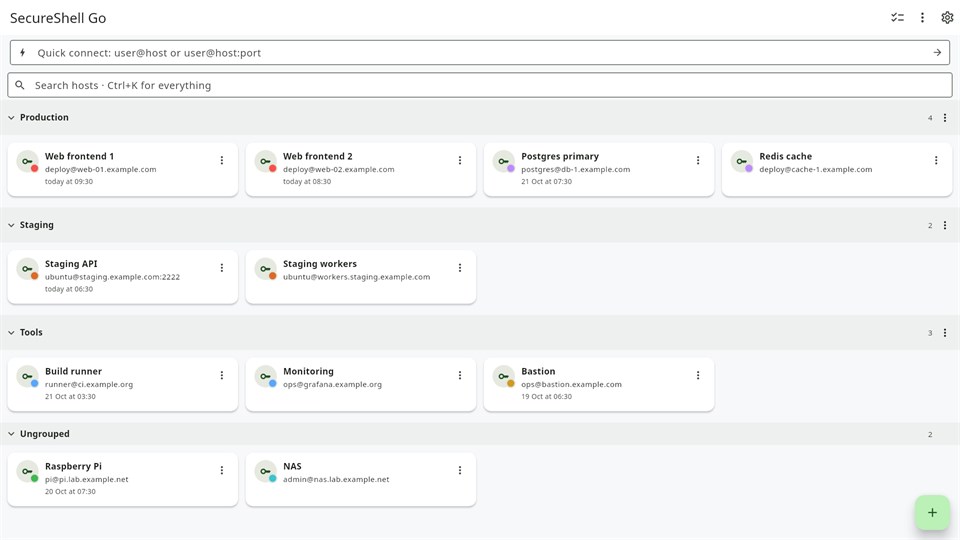
• Groups, colour tags and search, with a Ctrl+K command palette over hosts, snippets and actions
• Quick connect with user@host:port, or paste a whole ssh command
• Snippets with {placeholders}, and a startup command per host
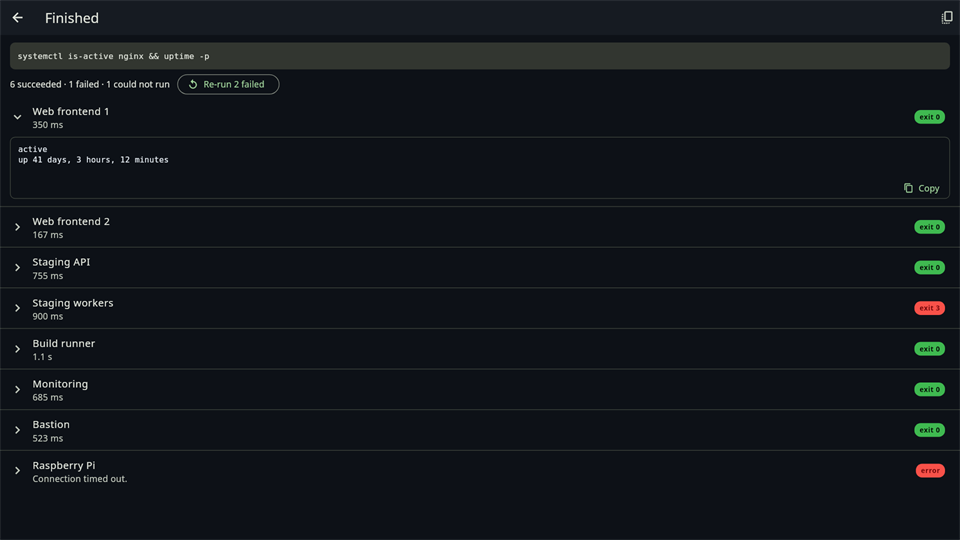
• Run a command on many servers at once and see each one's output, exit code and running time; push a file to many servers
• Server stats, a live log tail with filtering, systemd services and processes
MOUSE, KEYBOARD AND TOUCH
Layouts follow how you use the device rather than its operating system. With a mouse you get split panes, right-click menus and drag and drop; on a Windows tablet used by touch you get larger touch targets and the extra keys row (Esc, Tab, Ctrl, arrows and more) above the on-screen keyboard. Keyboard shortcuts: Ctrl+Shift+T for a new session, Ctrl+Tab between sessions, Ctrl+Shift+E between terminal and files, Ctrl+Shift+Enter for a full-width terminal.
Open source under the MIT licence.
Vom Entwickler
Listen 0
-
 SecureShell Go
Punkte 0
-

- +1 Punkt

Ranglisten 0
-
- Deine Bewertung
Entwickler 9
- Dhiva-Labs
- Follower: 0
- Plattformen: Windows Apps (9)
- Angebote: 0
- Listen: 0 0
- Punkte: 0
- Ranglisten: 0
- Kommentare: 0
- Videos: 0
- RSS: Abonnieren
Neue Funktionen
- Version: PC
- Zuletzt aktualisiert:
Weitere Informationen
- Veröffentlichungsdatum:
- Kategorie:
Windows-Apps›Entwicklungstools - Betriebssysteme:
PC - Größe:
23 Mb - Unterstützte Sprachen:
Englisch - Altersfreigabe:
EVERYONE - Windows Store Bewertung: ¡
0
 https://github.com/Dhiva-Labs/SecureShellGo
AppAgg-Score
Geschätzter AppAgg-Score für
SecureShell Go
Entwickler: Dhiva-Labs
Ein höherer Score weist meist auf bessere Werte bei den von AppAgg erfassten Kennzahlen hin.
Basierend auf: Popularität · Nutzerbewertungen · Aktualität · Angeboten · Store-Daten · Community-Aktivität
Wird täglich anhand aktueller AppAgg-Daten neu berechnet.
Kommentare 0 ¡
Teilen
SecureShell Go Kurz-URL: Kopiert!- Windows Store

